

MiniFuse 2 OTG provides the following connections:
- 1/4" jack Inputs (Front): The combo jack(s) accept two different kinds of input - XLR and TRS - allowing you to connect a variety of microphones and instruments into the MiniFuse. The type of input is determined by the Guitar and 48V switches next to the input.
- 1/4" jack Phone output (Front):The 1/4” stereo headphone output can be used for connecting headphones. The headphone output mirrors the Monitor Output but has its own independent volume control.
- 1/4" jack Outputs: These 1/4” balanced stereo outputs can be connected directly to active studio speakers or other devices such as amplifiers and mixers.
- Hub: This convenient USB port allows you to plug in other USB devices, like thumb drives or MIDI controllers up to 200mA.
- USB-C Computer: Connect the interface to your computer by plugging the supplied USB cable into this port and your computer. This connection provides power to the interface and enables communication between the interface and your computer.
- USB-C OTG: Connect the interface to a secondary source (PC, Mac or Smartphone) by plugging the supplied USB cable into this port and your computer. This connection only handles data so this port cannot be used to power the interface. iOS devices with a Lightning port will require the Apple Lightning to USB 3 Camera Adapter (shown below):
 Note
Note
We strongly recommend using a genuine Apple adapter rather than a third-party device. Apple
adapters contain "smart" circuitry that is periodically auto-updated for feature compatibility with new
devices.
Use one of the included cables (Either USB-C to USB-A or USB-C to USB-C) to connect the MiniFuse 2 OTG to an available USB port on your computer.
Note that third-party cables are not recommended, please use the supplied cables instead.
Make sure to plug the small end of the cable into the USB-C port on the back of the MiniFuse 2 OTG labelled with a laptop icon:
Use the included cable (USB-C to USB-C) to connect the MiniFuse 2 OTG to the USB port on your iPad or Iphone.
Make sure to plug the small end of the cable into the USB-C port on the back of the MiniFuse 2 OTG labelled with a Smartphone icon:
Notes
-Note that third-party cables are not recommended, please use the supplied cable instead.
-Note also that iOS devices using Lightning ports will imperatively require to use the official (strongly recommended) Apple Lightning to USB-C camera adapter as the one below:
Important Notes
-The following list is not exhaustive and other compatible devices may be added or possibly removed if significant changes on OS or firmware sides are leading to potential issues.
-Please note that many other devices not listed here (or using a different operating system version) should be also working perfectly fine with MiniFuse 2 OTG.
-Note also that Sample rate is restricted to 44.1 and 48 Khz via the OTG USB port.
In case your MiniFuse 2 OTG would not be working as expected on your mobile device, you can refer to the following device compatibility list to check if it should be supposed to work or not (based on current testing results):
| Device Model | Operating System | Version |
|---|---|---|
| Google Pixel 7A | Android | 15 |
| Google Pixel 8 | Android | 15 |
| Honor 90 | Android | 13 |
| Huawei Mate 40 | HarmonyOS | 4.2 |
| Huawei Mate 60 | HarmonyOS | 4.2 |
| Huawei P30 Pro | HarmonyOS | 4 |
| iPad 9 | iPadOS | 17.6.1 |
| iPad Mini A17 Pro | iPadOS | 18.5 |
| iPhone 11 | iOS | 17 |
| iPhone 12 | iOS | 18.5 |
| iPhone 13 | iOS | 16 |
| iPhone 14 Pro | iOS | 18.5 |
| iPhone 15 | iOS | 17 |
| iPhone 8 Plus | iOS | 15.6.1 |
| iQOO Neo8 | Android | 14 |
| OnePlus 11 | Android | 15 |
| OnePlus Ace 2 | Android | 14 |
| Realme GT 6 | Android | 14 |
| Realme GT Neo2 | Android | 11 |
| Redmi K50 | Android | 14 |
| Redmi K80 | Android | 15 |
| Redmi Note 10 Pro | Android | 12 |
| Redmi Note 11 Pro | Android | 12 |
| Redmi Note 9 | Android | 10 |
| Samsung Galaxy A15 | Android | 14 |
| Samsung Galaxy A16 | Android | 14 |
| Samsung Galaxy A52 S | Android | 14 |
| Samsung Galaxy A56 | Android | 15 |
| Samsung Galaxy Flip 5 | Android | 15 |
| Samsung Galaxy S20 FE | Android | 13 |
| Samsung Galaxy S24 Ultra | Android | 14 |
| Samsung Galaxy S9+ | Android | 10 |
| Xiaomi 13 | Android | 14 |
| Xiaomi Poco X3 Pro | Android | 11 |
We recommend that you use balanced TRS cables (two rings around the connector) for best experience.
This depends on your instrument.
The most common cables used to connect instruments are:
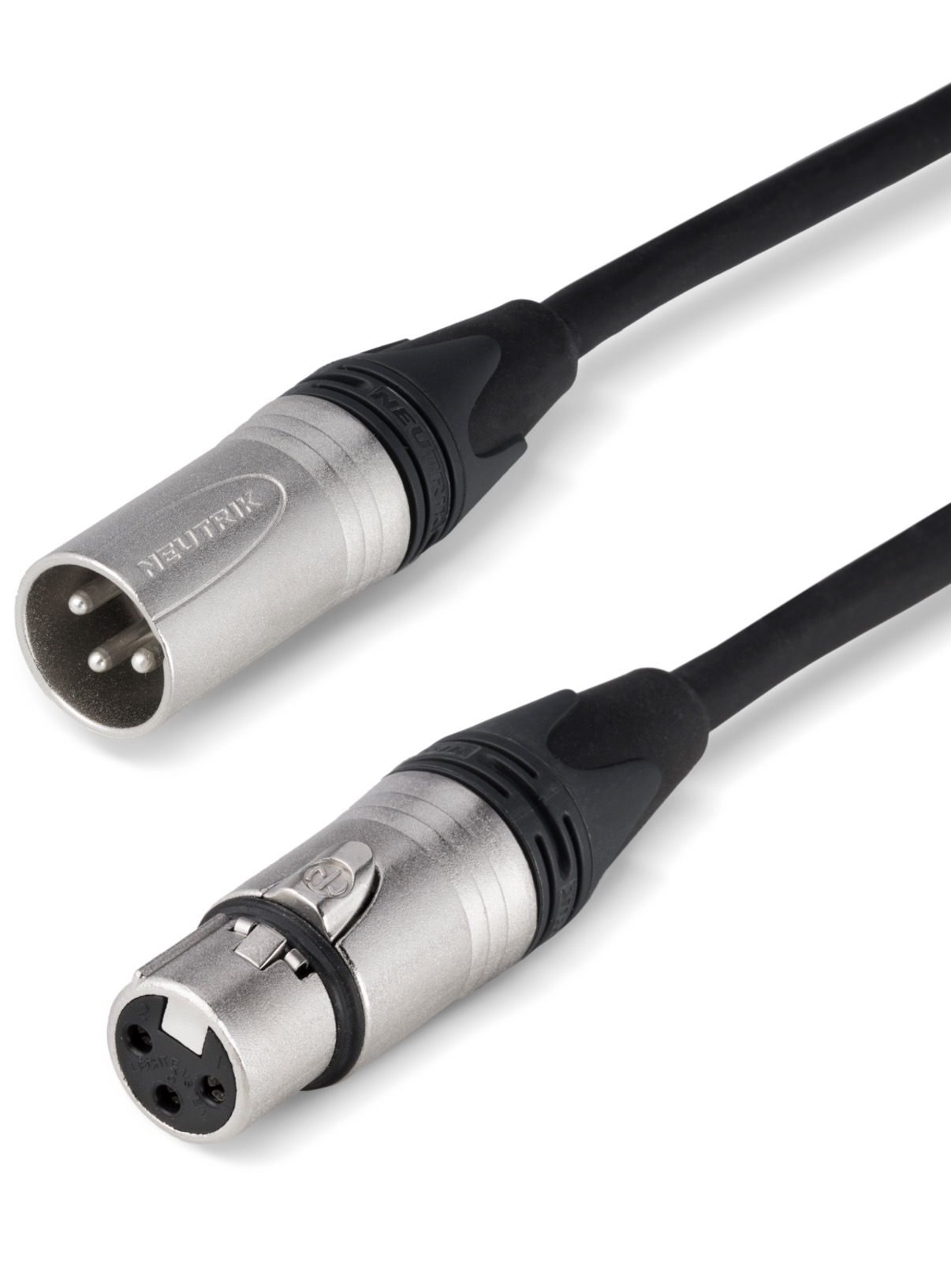
- Microphone - XLR (3 pin) or 1/4" (TS) cable
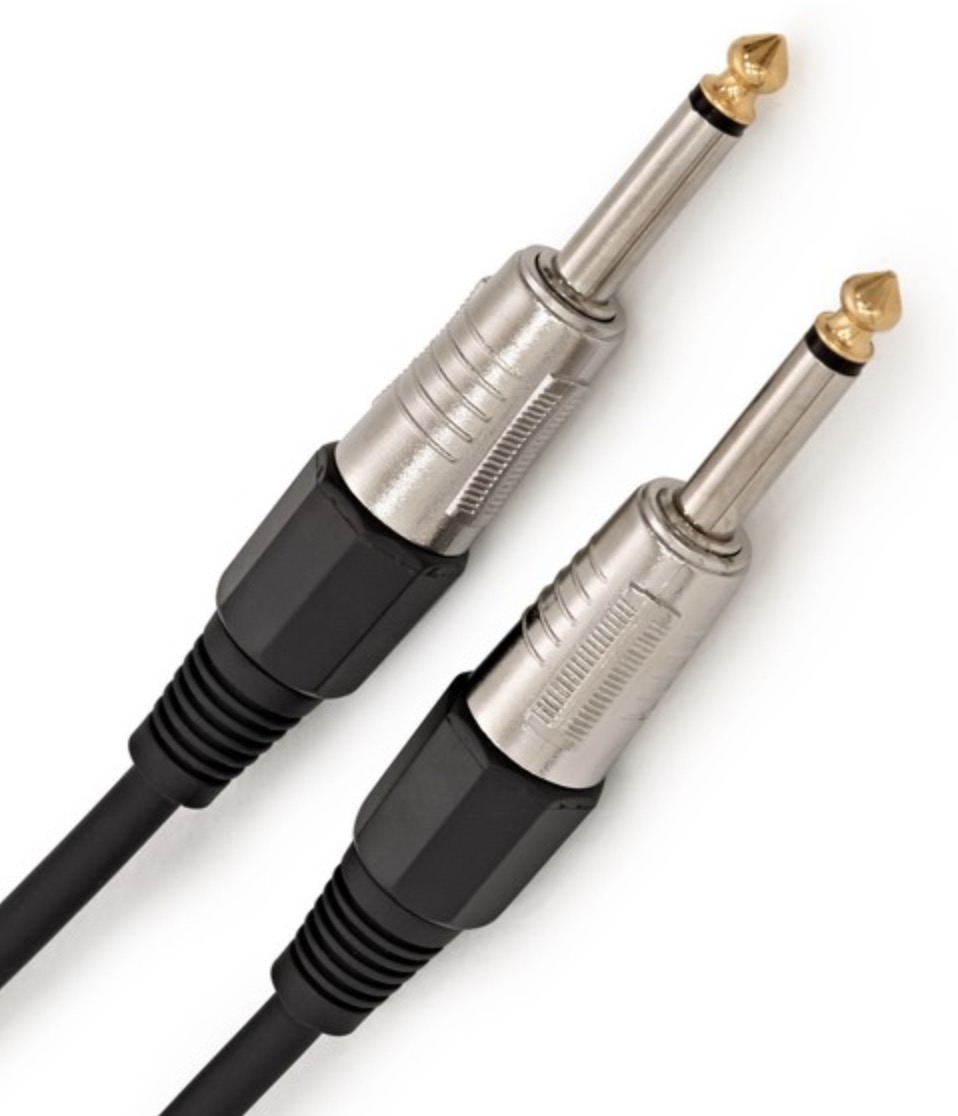
- Guitar or bass - 1/4" (TS) cable
- Synthesizers and drum machines - 1/4" TRS cables, or RCA cables with RCA-to-1/4" adapters*.
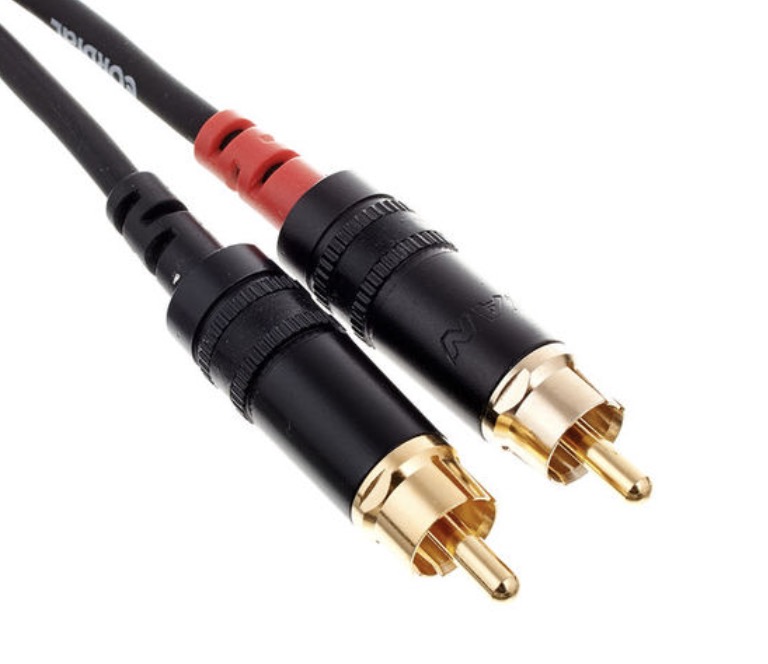
- DJ Mixers - 1/4" TRS cables, or RCA cables with RCA-to-1/4" adapters.
Note
We recommend using TRS (balanced) cables whenever balanced outputs are available from your equipment; this will keep noise as low as possible.