

Dear Customers,
Since the release of V Collection 8.2 and FX Collection 2.1, Arturia software titles can run natively on M1 (& above) Apple Silicon equipped computers as Universal Binaries (Still compatible with Intel-Based setups).
If you are an owner of such devices, and you want to learn more about the Apple Silicon compatibility of Arturia products, please refer to the following sections.
The ASC is now a universal binary and can run smoothly on both Apple Silicon (M1/M2..) or Intel-based setups.
You should not have to care about anything specific here as everything should be working fine as long as proper permissions (Full Disk Access) are granted and as long as the needed background login items are allowed to run.
For any other questions or in case of any potential issues related to the ASC, please check the following articles:
Finally, for more details about specific software instruments and plug-ins, please refer to the following sections.
The MCC will currently only operate in Rosetta mode (but will be provided in the future as a Universal binary for full native compatibility with ARM based setups).
All the instruments from V Collection 11 are Universal Binaries working both on Apple Silicon or Intel-based setups.
If using instruments from previous V Collection bundles (including outdated versions of the instruments) which can be still running as Intel Based applications for some of them requiring Rosetta to be installed and used, you can check if your instrument currently runs under Rosetta, or natively via the "About" section of the plug-in for the build number.
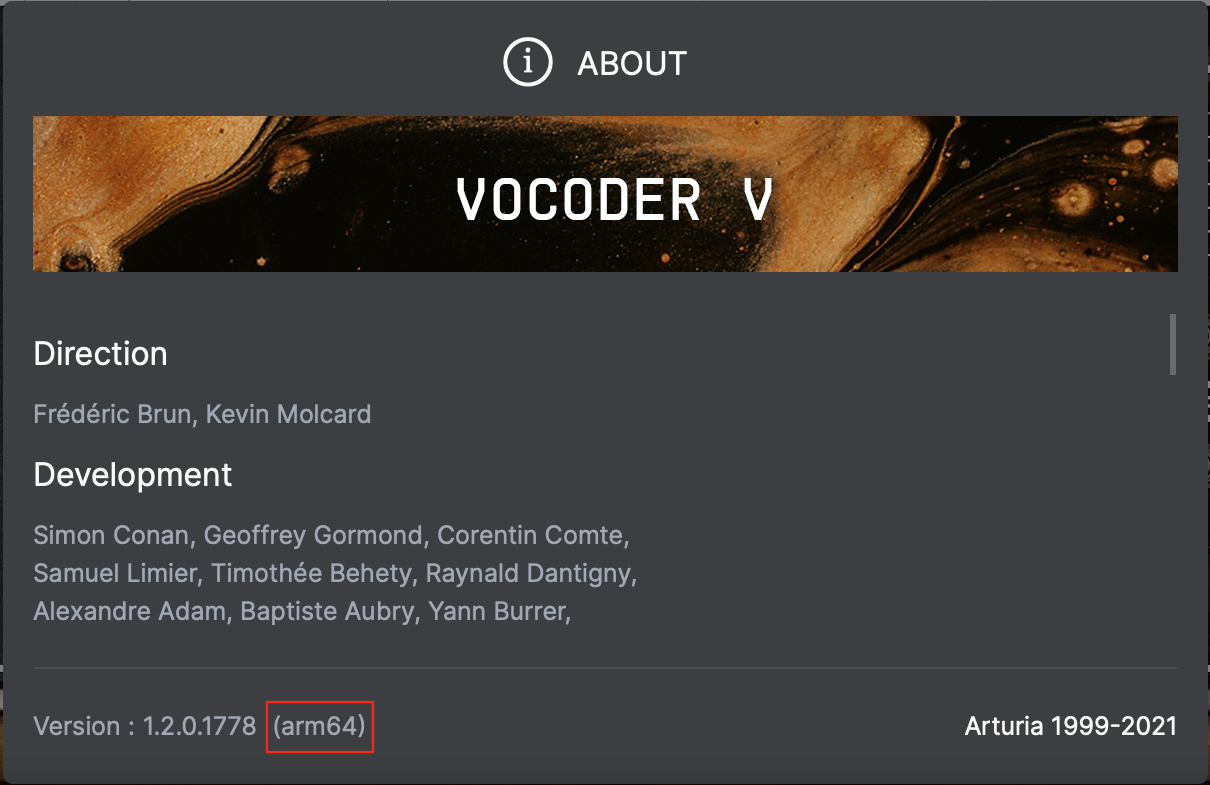
If the build number contains "ARM64", the plug-in is run natively on your Apple Silicon computer.
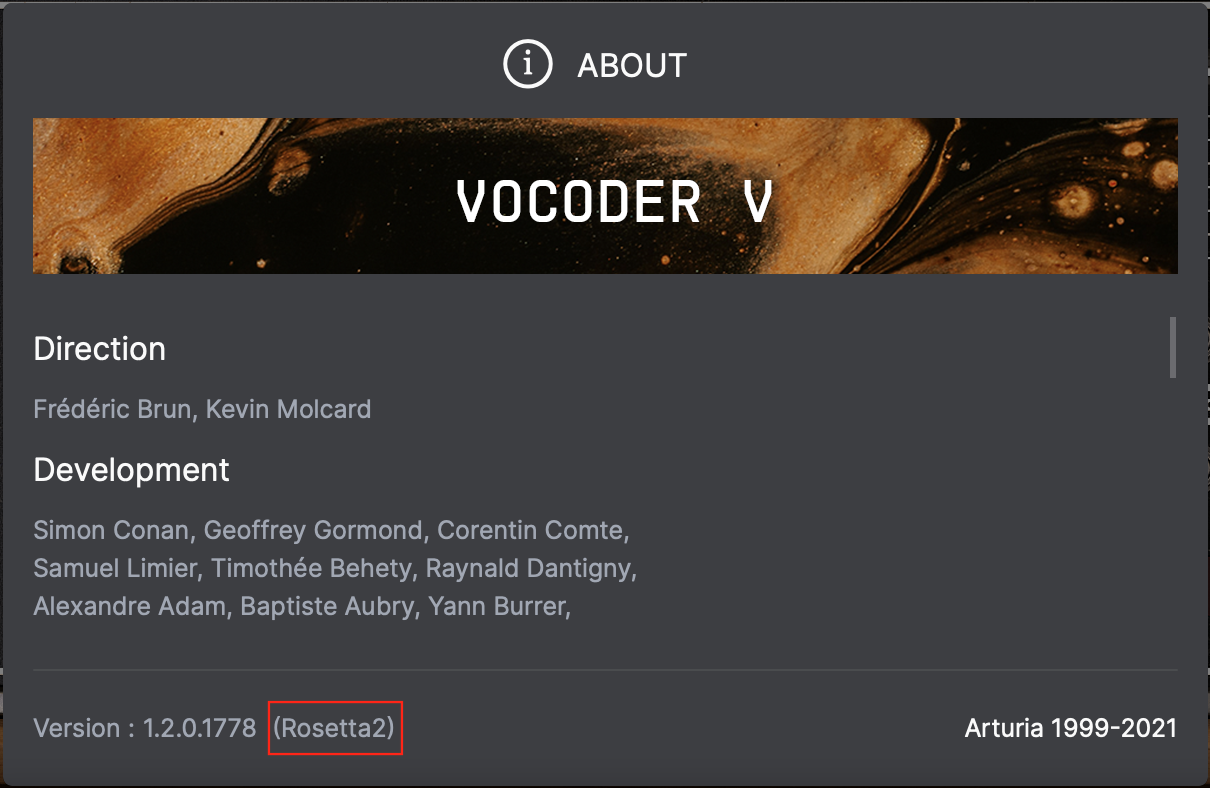
If it contains "Rosetta", the plug-in is run under "Rosetta mode".
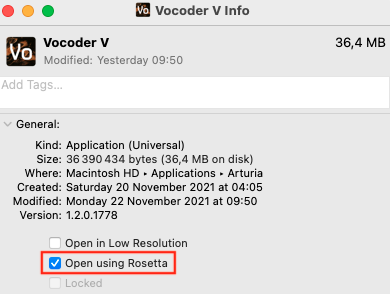
For standalone instruments, you can also check that in the "Applications" folder of your computer. Right-click on the plug-in, then click on "Get info". From here, you can see if "Open with Rosetta" is ticked or not and adjust this option if necessary:
In DAWs, plug-ins will run natively or in "Rosetta mode" depending on the DAW versions and parameters (if DAW is running in Rosetta mode, plug-ins will be running in Rosetta mode as well).
 Note
If you own a V Collection bundle starting from VC4 Update up to VC7, most of the instruments do still benefits from the latest improvements and are also universal binaries if their version number is still the latest and current one (e.g ARP2600 V3). Make sure though to refer to the dedicated "Legacy products" section for additional details.

Pigments is of course also Universal Binary, just like the other V Collection software products above.

All the effects from FX Collection are Universal Binaries.
To check if your effect runs under Rosetta, or natively, you can go and check in the "About" section of the plug-in for the build number.
If the build number contains "ARM64", the plug-in is run natively on your Apple Silicon computer.
If it contains "Rosetta", the plug-in is run under "Rosetta mode".
Plug-ins will be running natively or in "Rosetta mode" depending on the DAW versions and parameters (if DAW is running in Rosetta mode, plug-ins will be running in Rosetta mode as well).
PolyBrute Connect can also run natively with Apple Silicon processors.
Just make sure to download the very latest version available on the page below:
PolyBrute's Resources page
No further updates being planed,Analog Lab 4 activation will not be possible on Apple Silicon computers.
To keep using Analog Lab, make sure to download and install Analog Lab V to migrate to the very latest version.
- If you currently only own an Analog Lab 4 license, please note that this license also includes an Analog Lab Pro license which is activated and installed along with Analog Lab 4 via the Arturia Software Center.
You can also find the direct download link for Analog Lab V below:
- While using Analog Lab V, you should be though still able to access all the Analog Lab 4 "Factory" presets via the "Factory" bank if needed after activating the "Include Legacy Sounds" option available via the Hamburger menu located in the upper left corner of the interface:
Note
User presets are usually automatically imported from Analog Lab 4 to Analog Lab V / Pro. If it is not the case, you can import them manually by fetching them in the local "Presets" folder of Analog Lab V / Pro .
Only some selected legacy products were updated to be Apple Silicon compatible in "Rosetta mode".

Here is the list:
- B-3 V1
- Jup-8 V3
- Piano V1
- Spark 2
- Stage-73 V1
Notes
-Please note that all these legacy instruments cannot be installed on macOS 27 Golden Gate and will lead to the following error message:
We unfortunately cannot guarantee that such will be fixed considering that these products were already discontinued since years and invite you to upgrade your licenses to their latest versions to benefit from the appropriate support and compatibility along with latest OS versions.
-If you'd like to use the the presets from the legacy software listed above within your DAW environment in native mode (except for Spark), make sure to rely on Analog Lab V, and to enable the "Include Legacy Sounds" option from the hamburger menu.
FL Studio:
Starting from version 20.8.4 of FL Studio, FL Studio cannot support both M1-native plug-ins/effects and plug-ins/effects used in "Rosetta mode".
In case you would be using some legacy instruments (Operating only in Rosetta mode), please refer to the "HOW TO SWITCH BETWEEN APPLE SILICON AND ROSETTA MODE" section of this article to have FL Studio operate in "Rosetta mode".
Once installed, you will be able to use the said applications developed for Intel chips on your M1-equipped computer.
For more information about "Rosetta" and its use, please refer to this article from Apple.